
TL;DR
Showit is not bad for SEO, but it does have SEO issues that are easy to miss.
The biggest problems usually come from image filenames, messy heading structure, incorrect Showit layer order, hidden elements, large PNG files, broken buttons, missing redirects, missing schema and duplicate page titles or meta descriptions.
Showit gives you access to important SEO settings, including page titles, meta descriptions and image SEO fields, but it does not automatically check that everything has been set up correctly.
That means your website can look beautiful and still have issues hiding behind the scenes.
The best way to fix Showit SEO issues is to check your site page by page, find the issues generic tools miss and work through what to fix.
Page by page.
Fix by fix.
Introduction
Your Showit site might look beautiful.
But behind the scenes, small SEO issues can quietly make it harder for search and AI to read your website.
That is the danger with Showit.
The front end can look polished, but the SEO setup can still be messy.
Showit is not bad for SEO. It gives you control over important settings like page titles, meta descriptions, image SEO fields and redirects. But it does not automatically check that everything has been set up properly. Showit’s own SEO tools documentation explains where users can edit SEO settings for pages and images, while its redirect documentation confirms redirects can be added manually when old pages need to point somewhere new.
So the problem is not that Showit cannot work for SEO.
The problem is that Showit gives you freedom without enough SEO guardrails.
Here are the Showit issues I see ruining SEO most often.
Updated October 2026: Showit now serves WebP images automatically on upgraded designs and has raised its upload limits. This post reflects those changes.
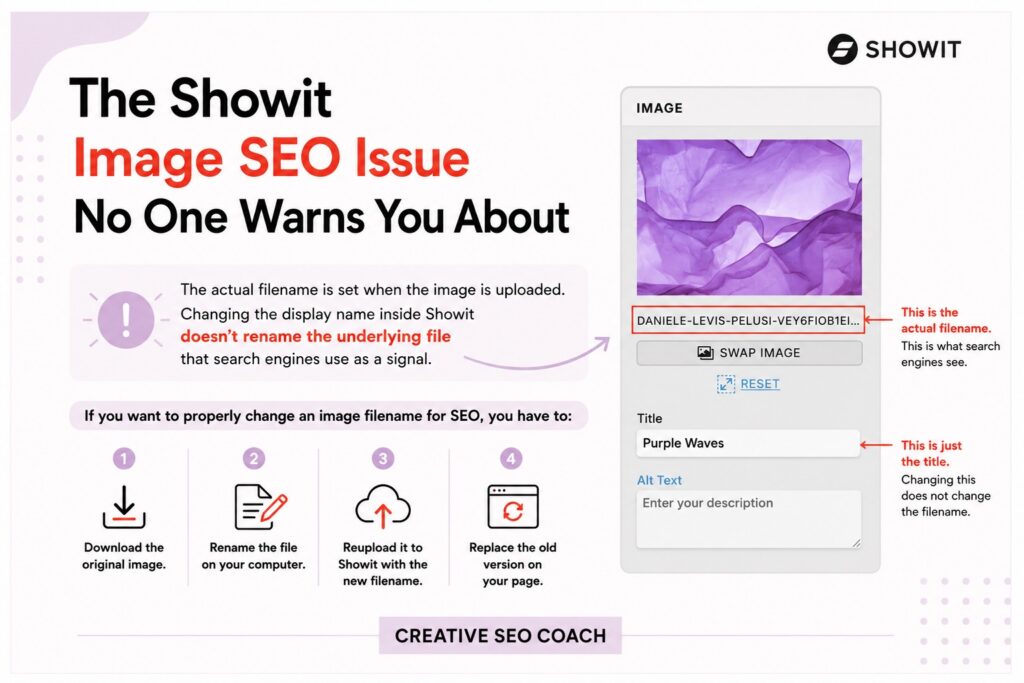
1. The Showit image filename issue
This is one of Showit’s most frustrating SEO problems.
Showit lets you edit image SEO fields inside the platform. That is useful.
But changing the image name or SEO title inside Showit is not the same as changing the actual uploaded filename.
If you upload an image called:
IMG_4829.jpg
then later realise it should be:
showit-seo-consultant-homepage.jpg
you cannot just type a better name into Showit and assume the real file name has changed.
For the actual filename to change, you need to:
☐ Rename the image on your computer.
☐ Reupload the image to Showit.
☐ Replace the old image on the page.
☐ Add the correct alt text or image description.
☐ Check the image still displays properly.
One image is annoying.
A full website is painful.
And if your site has dozens or hundreds of images, this becomes a huge cleanup job.
Why does this matter?
Google’s image SEO documentation recommends using descriptive filenames and helpful alt text because these signals help Google understand the subject matter of images.
So if your Showit site is full of files called IMG_1234.jpg, you are missing an easy relevance signal.
Work through your images across your Showit site so you can stop guessing which ones need attention.
2. Heading tags and layer order problems
Showit headings have two parts.
First, you need to correctly define the heading.
Then, you need to make sure the layer order is correct.
This is where many Showit sites go wrong.
A heading might look correct on screen, but that does not mean it has been tagged properly behind the scenes.
Your page should usually have:
☐ One H1.
☐ H2s for main sections.
☐ H3s for sub-sections.
☐ No decorative text marked as headings.
☐ No skipped heading levels.
But Showit adds another layer of complexity.
Showit builds your page code based on the bottom-to-top order of the elements in the left-hand Canvas and Layer panel.
That means your HTML tags also need to be visually layered in the correct order inside that panel.
Your H1 layer should sit lower in the Canvas panel list than your H2 layers.
Your H2 layers should sit lower than their related H3 layers.
In other words, your heading structure needs to be correct from bottom to top.
If your page looks perfect visually but the Canvas panel is messy, search and AI may read your content in the wrong order.
That makes your page harder to understand.
This is a very Showit-specific SEO issue and it is exactly the kind of problem generic tools often miss.
3. Hidden elements slowing down your website
This is a big one on DIY Showit sites.
Sometimes a page looks clean on screen, but the Canvas panel is full of old, hidden or unused elements.
Maybe you duplicated sections.
Maybe you hid elements on mobile.
Maybe you tested a few design ideas and never cleaned them up.
Maybe an old version of a section is still sitting there, invisible to you but still adding weight to the page.
This can make your site slower and messier than it needs to be.
And cleaning it up can be hell.
The issue is that hidden or unused elements are easy to forget because you cannot see them on the finished page. But they can still affect the build, the page structure and sometimes the amount of content the browser has to deal with.
A clean Showit site should not just look clean.
It should be clean in the Canvas panel too.
Before publishing, check for:
☐ Hidden elements you no longer need.
☐ Duplicate sections left behind.
☐ Old mobile-only elements.
☐ Desktop elements hidden on mobile but still unnecessary.
☐ Unused images, buttons or text boxes.
☐ Overlapping elements that do not serve a purpose.
The goal is simple.
If it does not need to be there, remove it.
4. No built-in cookie tracking help
Showit makes it easy to add Google Analytics to your website, but analytics and cookie consent are not the same thing. Showit’s Google Analytics documentation explains how to add tracking to your site, while its cookie law help explains that sites using cookies may need to let visitors know about cookies being used.
That means if you are tracking users with Google Analytics, Meta Pixel, embedded forms, ads or other scripts, you may need a proper cookie notice or consent setup depending on where your visitors are located and what laws apply to your business.
Showit does not give you a complete built-in cookie compliance system that magically handles all of this for you.
You need to understand what tracking tools you are using.
Then you need to set up the right cookie banner or consent tool.
This matters because SEO is not just rankings.
A properly run website needs clean tracking, privacy basics and trust.
5. PNGs are not compressed like JPGs
Showit supports common image formats, but not every format behaves the same way.
Showit recommends using JPG for most images, PNG only when transparency is needed and GIF only when animation is required. Showit’s image preparation documentation also says its servers do not resize PNG or GIF files, so those files should be sized as close as possible to how they will be used in the design.
Update for October 2026: on upgraded designs, Showit now delivers WebP versions of your JPG and PNG images to modern browsers automatically. That helps, but it’s still smart to size PNGs close to how they’re used, and to stick with JPG for photos. GIFs can be up to 8 MB now, but a big GIF is still a heavy GIF. (Showit’s announcement)
This is a big deal.
If you upload huge PNGs all over your Showit site, they can slow your pages down.
Use:
☐ JPG for most photos.
☐ PNG only when transparency is needed.
☐ SVG for logos and simple icons where appropriate.
Do not use PNG because it “looks nicer” if JPG would do the job.
That is how you end up with a beautiful site that loads like it is dragging furniture uphill.
6. Broken buttons and empty links
Broken buttons are everywhere on Showit websites.
Especially on DIY builds and template customisations.
A button can look perfect but go nowhere.
A social icon can sit beautifully in the footer but not link to anything.
An internal link can point to an old page that no longer exists.
These issues hurt trust, user experience and conversions.
Check for:
☐ Empty buttons.
☐ Buttons linking to the wrong page.
☐ Broken internal links.
☐ Broken external links.
☐ Social icons without links.
☐ Contact buttons that do not open the right form or page.
If someone clicks and nothing happens, that is not a tiny issue.
That is a lost lead.
7. No automatic redirect strategy
Showit lets you create URL redirects, which is good. Redirects help send visitors and search engines from old URLs to new ones, improving SEO and user experience.
But the important word is create.
You still need to know when to create one.
If you change a page name or URL, delete a page or rebuild your site, old links may break unless you add the right redirect.
Showit’s own guidance on page titles also warns that changing a page name can change the page slug, and changing the slug can cause broken links unless redirects are in place.
Common redirect problems include:
☐ Changing a page URL and not redirecting the old one.
☐ Deleting an old service page.
☐ Renaming a landing page.
☐ Rebuilding a site and changing multiple URLs.
☐ Forgetting that old Pinterest links, backlinks or emails still point to the old page.
Redirects are boring.
Broken links are worse.
8. No schema by default
Schema helps search and AI understand your content more clearly.
It gives extra context about your business, services, FAQs, products, events and more.
Showit does not automatically create a complete schema strategy for your website.
That means many Showit sites launch with little or no useful schema.
Depending on the page, you may need:
☐ Organisation schema.
☐ Local Business schema.
☐ Person schema.
☐ Service schema.
☐ FAQPage schema.
☐ Product schema.
☐ Event schema.
Schema is not magic.
But it is one more way to make your website easier to understand.
And in a world where AI search is pulling answers from structured, trustworthy sources, clarity matters.
9. Duplicate titles and meta descriptions
This happens constantly.
Someone duplicates a Showit page.
The design changes.
The copy changes.
But the SEO title and meta description stay the same.
Now two pages have duplicate metadata.
That confuses search engines and weakens your page targeting.
If you duplicate a page in Showit, always update:
☐ The page title.
☐ The meta description.
☐ The URL slug.
☐ The social sharing image.
☐ Any page-specific schema.
Every page should have its own job.
That means every page needs its own title and description.
A duplicated page with duplicated SEO settings is not launch-ready.
How to fix these Showit issues
You can check all of these issues manually.
But it takes time.
And Showit makes some of them easy to miss.
That is why it pays to work through them with a simple process.
Check your site page by page, because generic SEO tools often miss Showit-specific issues.
Look for:
☐ Image filename issues.
☐ Missing or weak alt text.
☐ Oversized images.
☐ Heading tag issues.
☐ Showit layer order problems.
☐ Hidden page clutter.
☐ Broken buttons and empty links.
☐ Missing redirects or broken links.
☐ Missing schema.
☐ Duplicate titles and meta descriptions.
Instead of making a giant panic list, work through your site page by page.
Fix the homepage.
Then the services page.
Then the contact page.
Page by page. Fix by fix.
That is how your Showit site becomes launch-ready.

Final thoughts
Showit is not bad for SEO.
But Showit can hide SEO problems in plain sight.
Your site can look finished while the backend tells a different story.
Image filenames. Heading order. Hidden elements. PNGs. Broken buttons. Missing redirects. No schema. Duplicate metadata.
Small issues.
Big consequences.
If you are using Showit, do not guess.
Find the issues, fix them properly and make sure your beautiful site is ready for search and AI.
For more help improving your Showit SEO. Check out “The Ultimate Showit SEO Checklist”


